The academy administrator's guide
The administrator sets up the academy, manages the staff and their permissions, and sees everything.
1. Your day at a glance
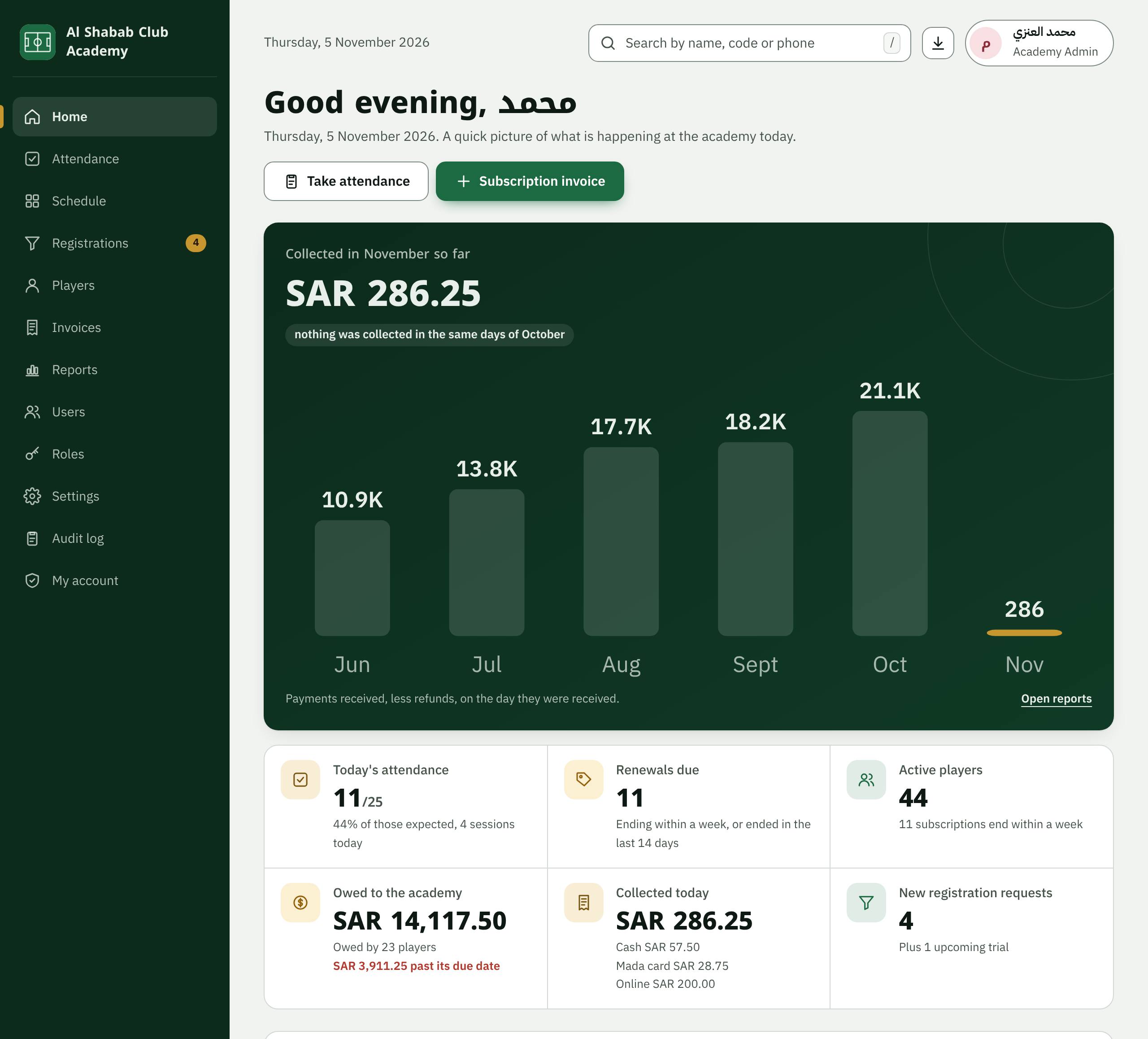
Home shows what was collected this month against last month, today's sessions and attendance, active players, what is owed, renewals coming up and new registration requests. Each card opens the list it counts.
2. Add your staff
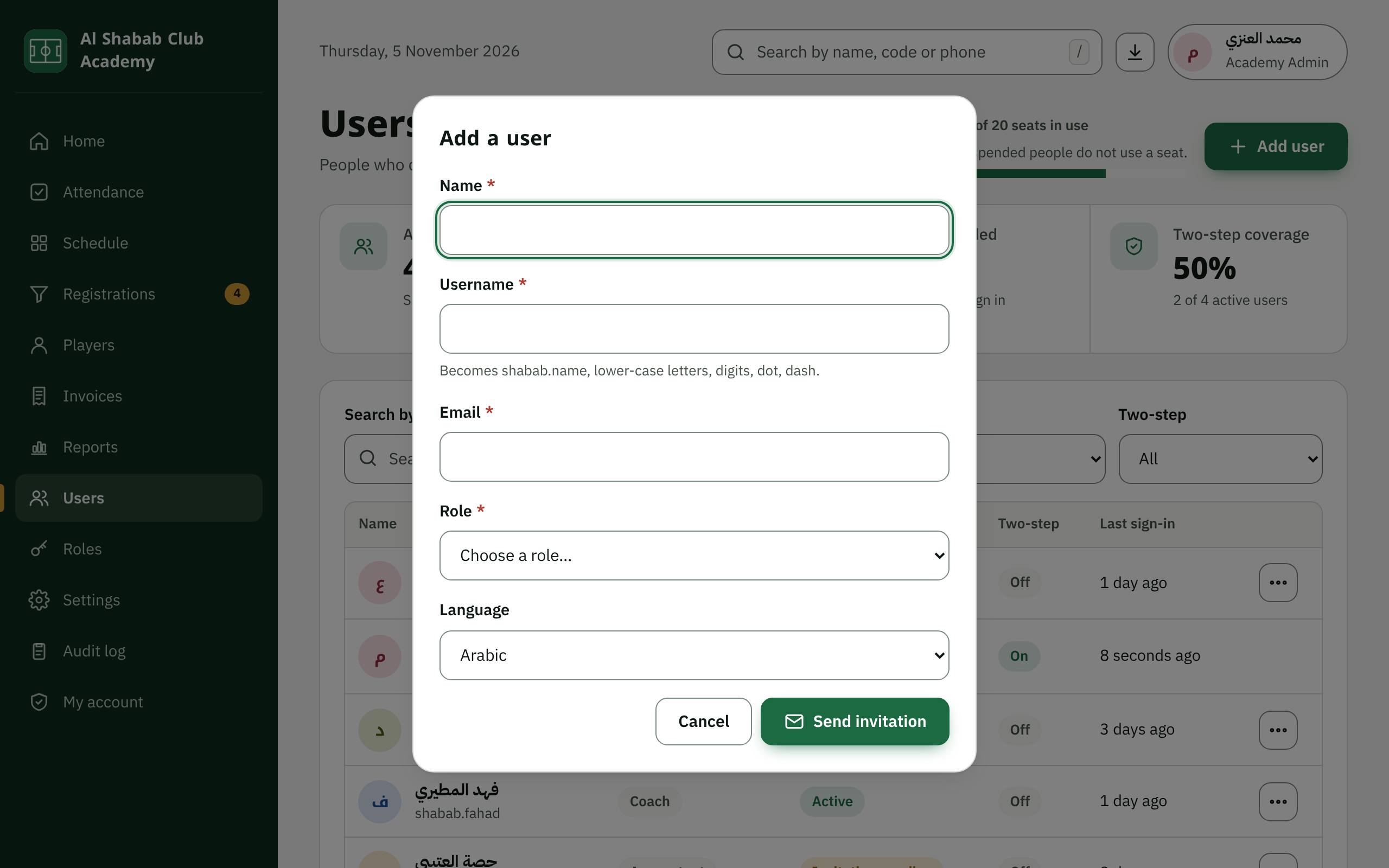
Open Users, then Add user. Type the name, username and e-mail, choose the role and the language, then Send invitation. The person receives an e-mail with a link to set a password, valid for 72 hours.
3. Help someone who cannot sign in
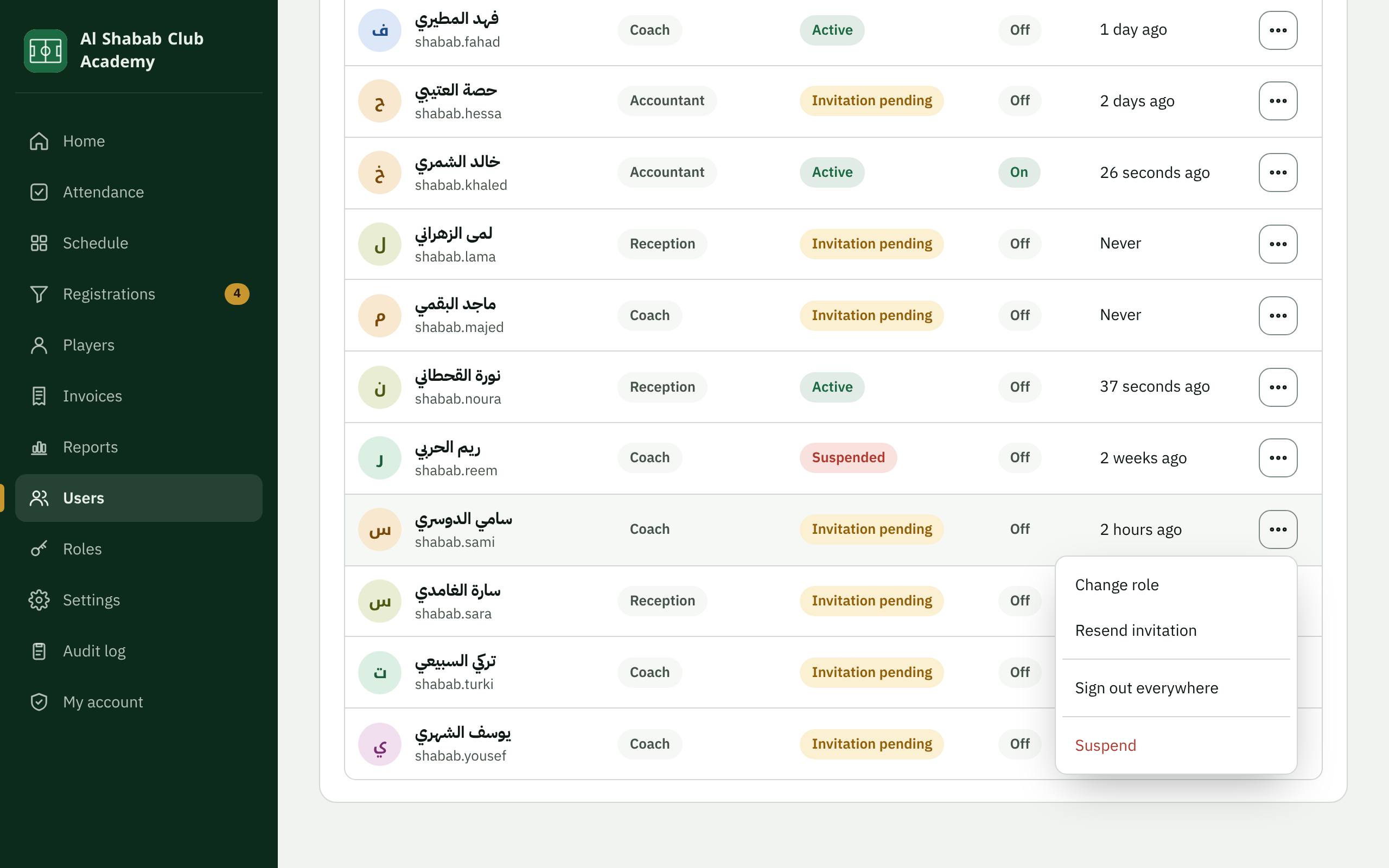
In Users, press the actions button next to their name. From the menu: Change role, Sign out everywhere, Reset two-step if they lost their phone, Unlock account after wrong attempts, or Suspend someone who left the academy.
4. Roles and permissions
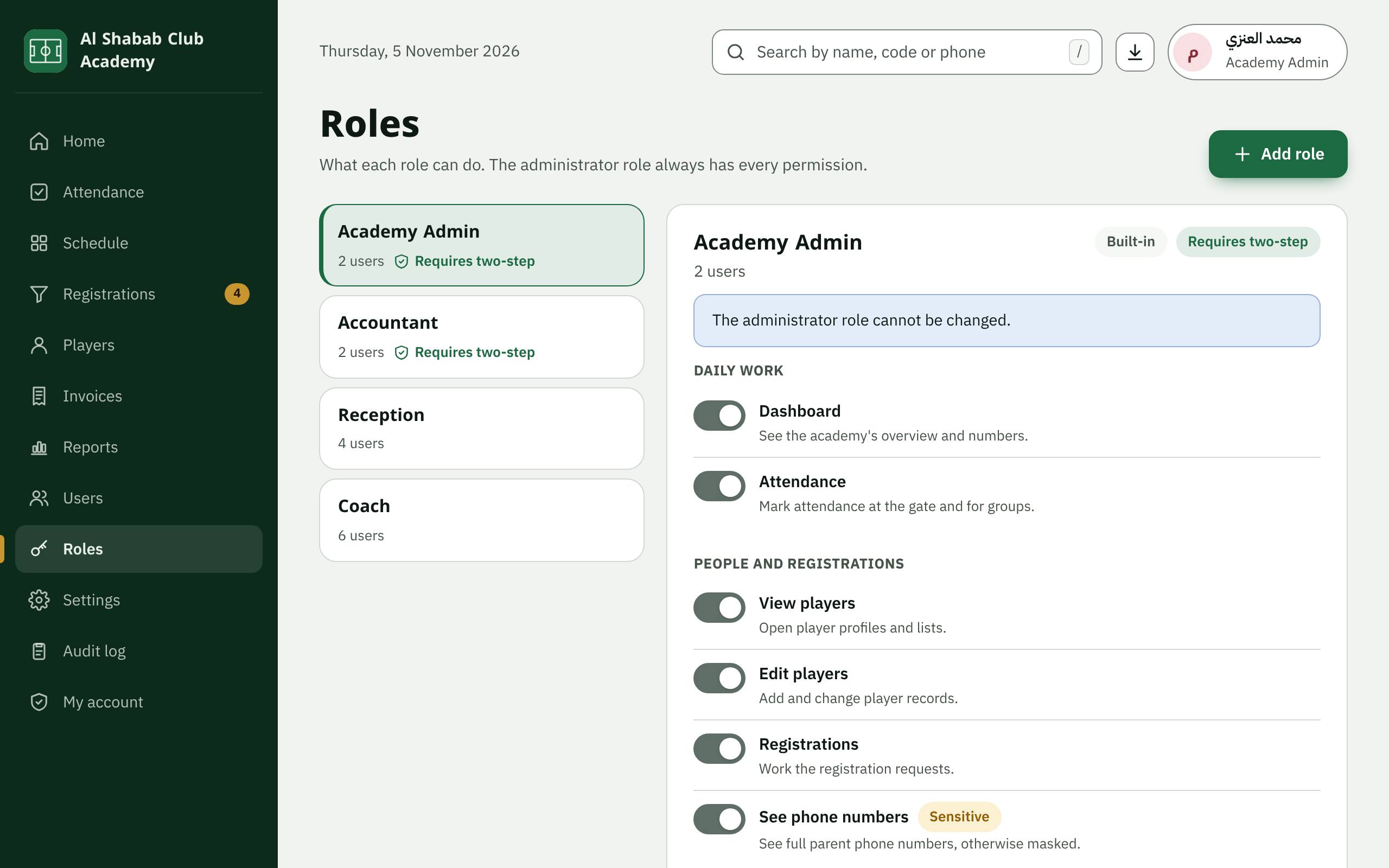
In Roles you see what each role can do, change the built-in roles (except the administrator's), or press Add role for a new one. Give the phone-number permission only to people who need to contact parents.
5. Settings
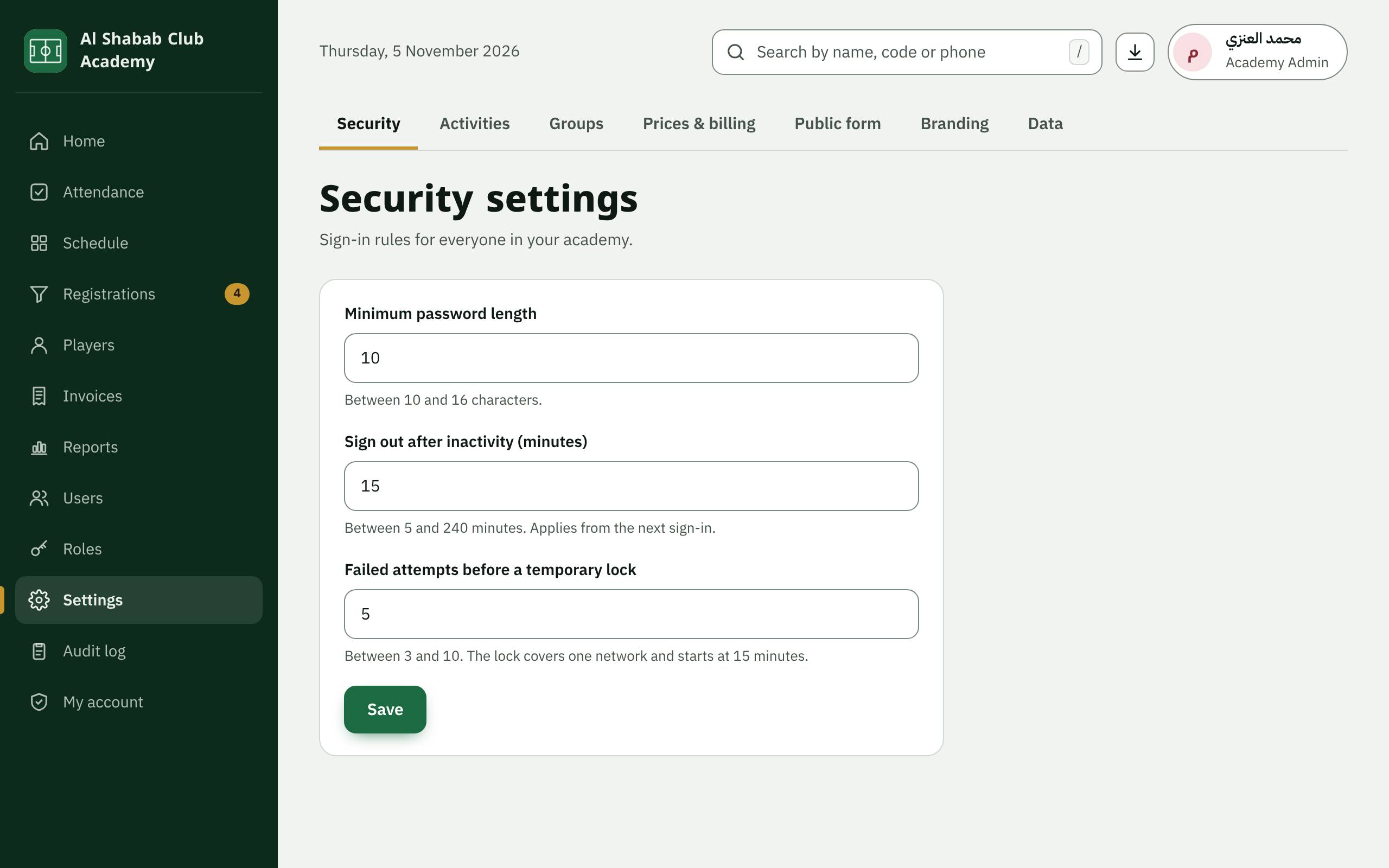
Settings has tabs: Security (password length, inactivity time, wrong attempts), activities, groups, Prices & billing (prices, services, VAT number, seasons), Public form (the registration form and its consent text), and Branding (logo and colour).
6. The audit log
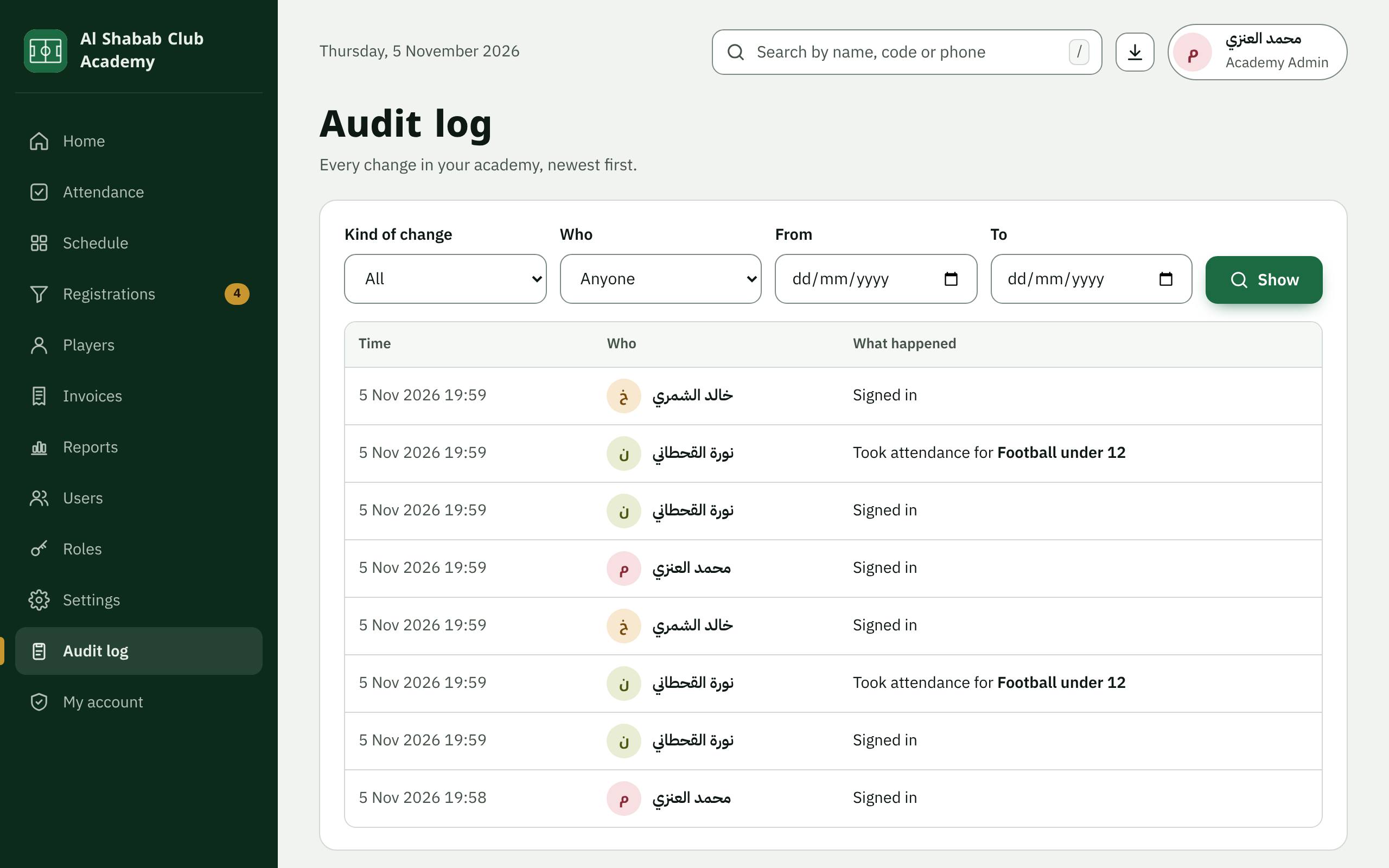
The Audit log shows every sign-in, change and export as a sentence: who did what, and when. You can filter by kind, person and date.
7. The academy's data
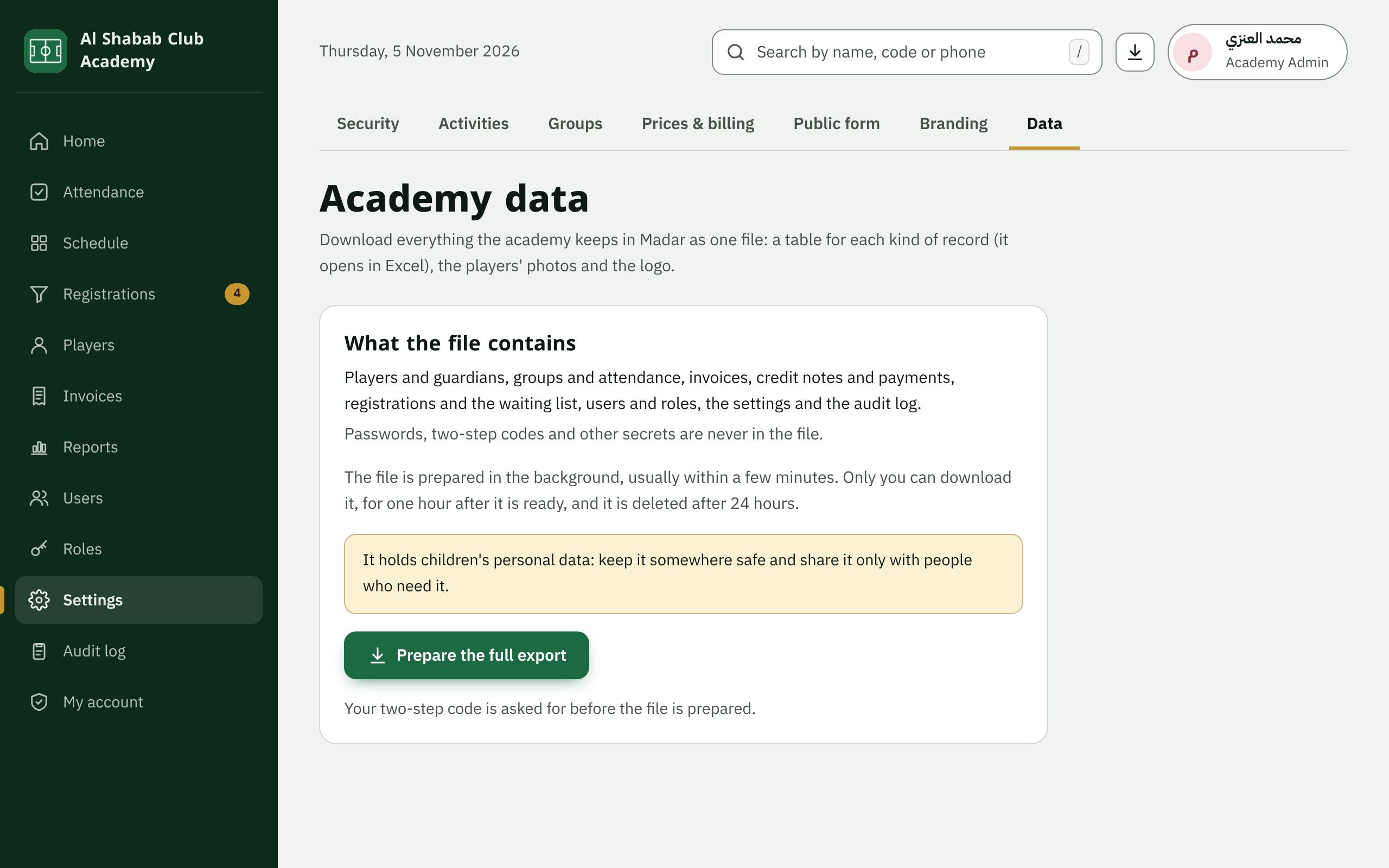
In Settings, the Data tab downloads everything the academy keeps in Madar as one file (a table for each kind of record, the players' photos and the logo). Press Prepare the full export and enter your two-step code; the file is prepared in the background. It holds children's personal data: keep it somewhere safe.
8. Erase a person's data
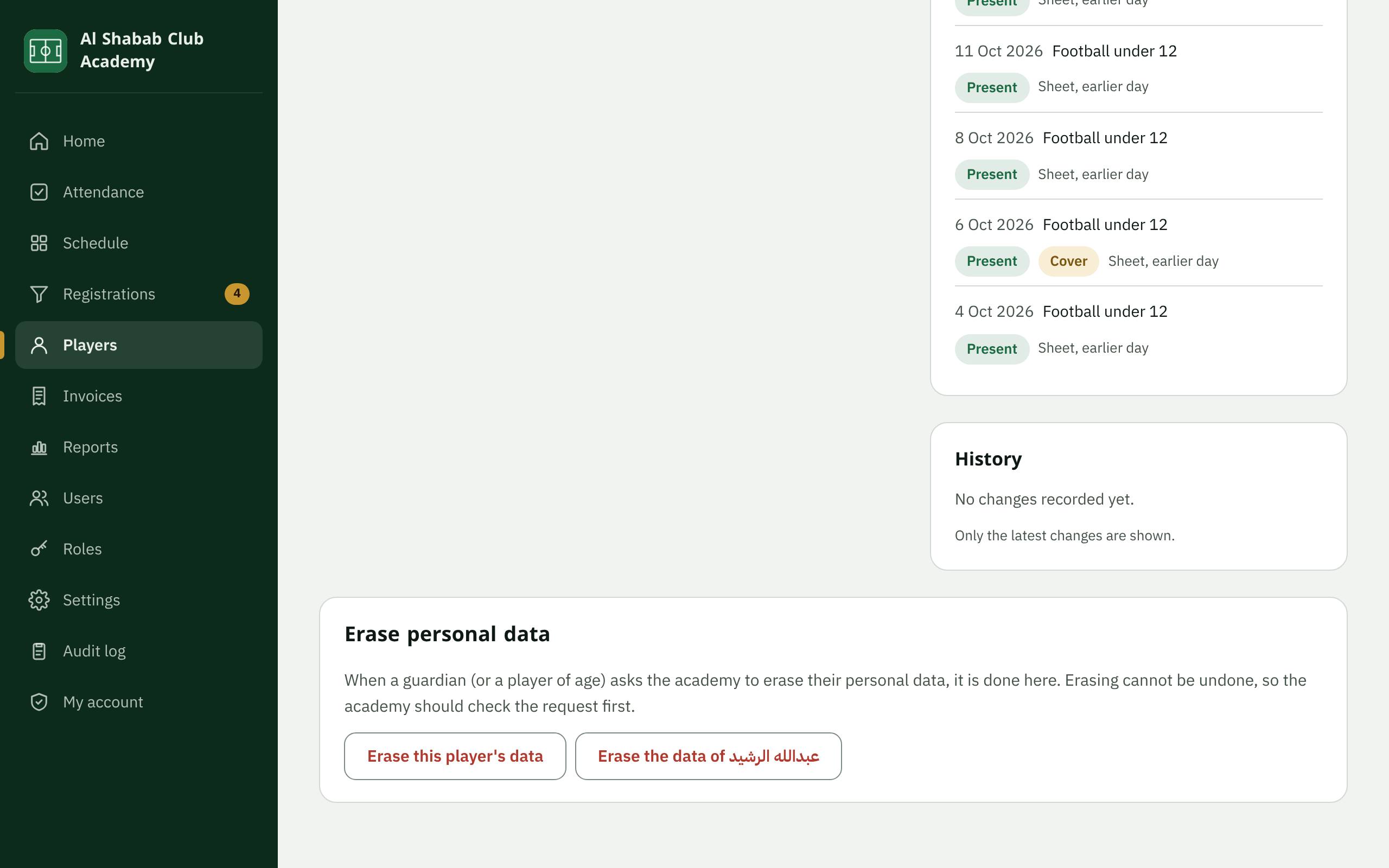
When a guardian (or a player of age) asks the academy to erase their personal data, open the player's file and go down to Erase personal data. Check the request first: erasing cannot be undone. Invoices and payments keep the buyer's name, as tax law requires.
9. After the service ends
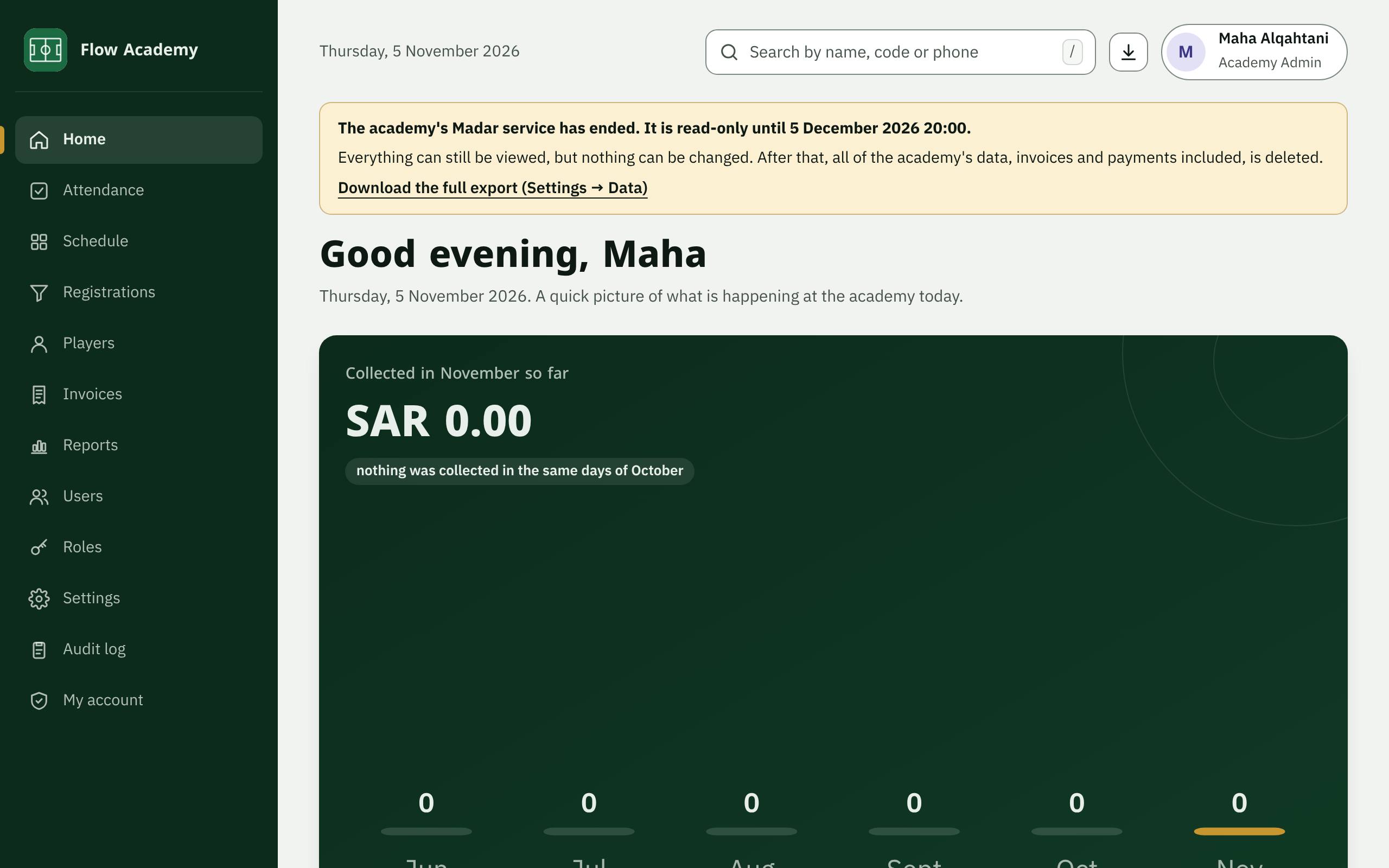
When the academy's Madar service has ended, a banner on every page gives the deletion date. Everything can still be viewed, but nothing can be changed. Download the full export before that date from the link in the banner.